How it works
- Add PNG or JPEG images from your device.
- Put them in the order you want using drag and drop or the move buttons.
- Download one PDF with one full-size image on each page.
Local conversion and page layout
The conversion tool processes images in your browser without uploading them. Each PDF page keeps the original image proportions.
Page sizes and a reproducible PDF example
Each image becomes one PDF page. Its pixel width and height are used as the same numerical values in PDF points (pt); 72pt equals one inch. A 1,200×800px image therefore creates a 1,200×800pt page, about 423.3×282.2mm. Pages are not automatically fitted to A4. Check paper size and scaling in your PDF viewer before printing.
The original aspect ratio is retained, and different images can create different page sizes. This tool does not select A4, arrange several images on one page, merge or edit existing PDFs, perform OCR, or enforce a PDF file size limit. Inputs must be JPG or PNG. Original files remain unchanged.
Check ordering and page sizes with two images
These original geometric patterns contain no photos or personal information. Download the source files and reproduce the examples with this site’s tools.
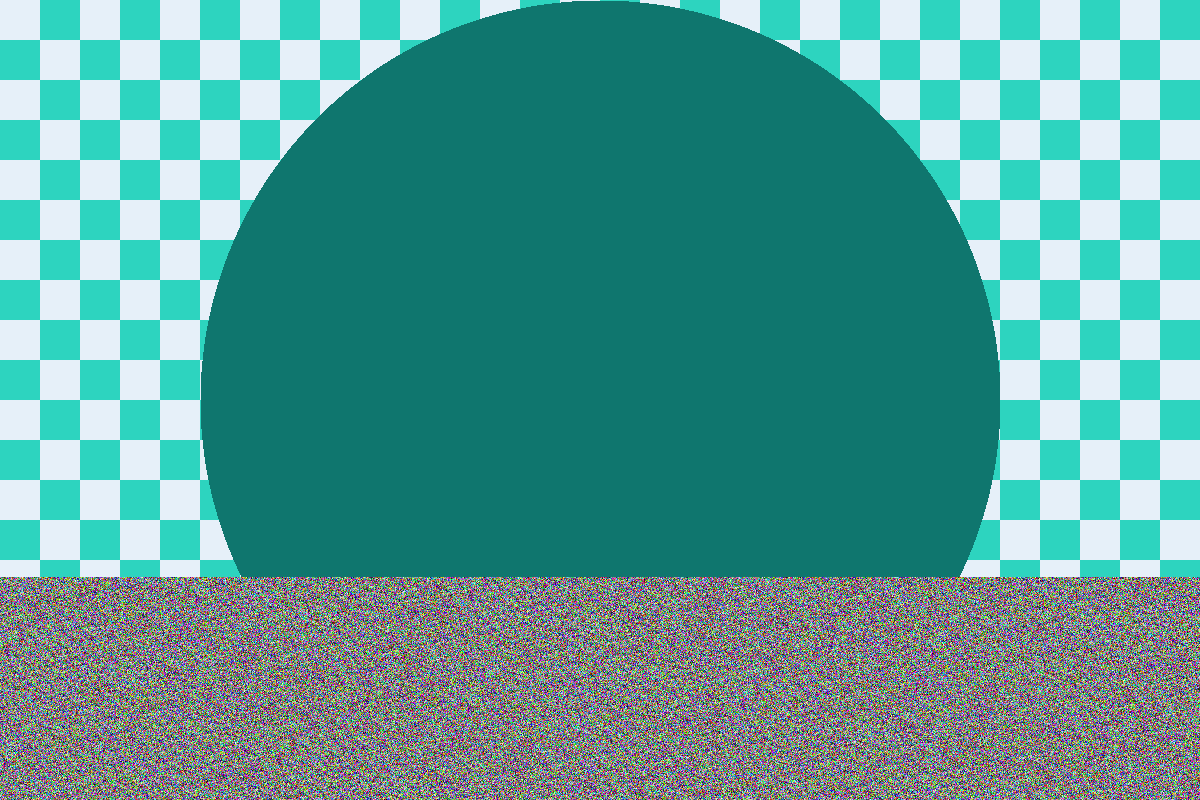
1200 × 800 px · 907,977 bytes
Download input sample
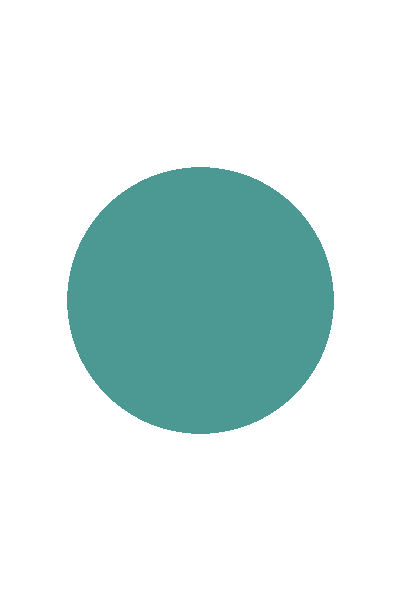
400 × 600 px · 4,642 bytes
Download input sample
- Download the landscape pattern and transparent portrait samples.
- Select both files, then use Move up on the portrait shape to put it first. Use the move buttons instead of dragging on mobile or with a keyboard.
- Select Download PDF. Open it in a PDF viewer and check the two pages: the portrait shape first and landscape pattern second.
Actual downloaded reference result: 2 pages · 821,187 bytes
- 1: 400 × 600 PDF points (pt)
- 2: 1200 × 800 PDF points (pt)
These figures describe actual downloaded files checked in the browser below. Encoders and PDF creation metadata can change file sizes and bytes. Check your own result using the tool’s actual metrics and downloaded file. Chrome 154.0.8037.58 · 2026-09-30
When conversion or printing looks wrong
Why can a mobile conversion fail within the stated limits?
The limits of 20 images, 20MB per file and 100MB total refer to file bytes, not guaranteed memory usage (1MB = 1,048,576 bytes). A small file can still have many pixels and need substantial memory. Convert a few images first, close other tabs, or reduce pixel dimensions in copies before retrying. Closing the tab stops an in-progress conversion.
Why is the PDF larger than the images or over a submission limit?
This tool does not enforce a maximum PDF size. PDF structure and PNG embedding can increase or reduce the size. If needed, prepare smaller image copies with the image resizer, rebuild the PDF and check the final PDF file’s size separately.
Why do print size, transparency or photo orientation differ?
Pages may not be A4. Check paper fitting and aspect ratio in the print preview. PNG transparency is shown over the PDF viewer’s page background. Some JPEG EXIF rotations are handled, but mirrored orientations and complete color information are not guaranteed. If a photo’s direction is wrong, first save a correctly oriented PNG copy and retry.
What if conversion fails or I cannot find the download?
A corrupt JPG or PNG may fail even with the right extension. Check that it opens on your device and retry with one small valid image. Check your browser or operating system’s downloads list or file app for the save location and completion. This tool does not control the dialog language or save location.
See examples for preparing image file sizes and pixel dimensions